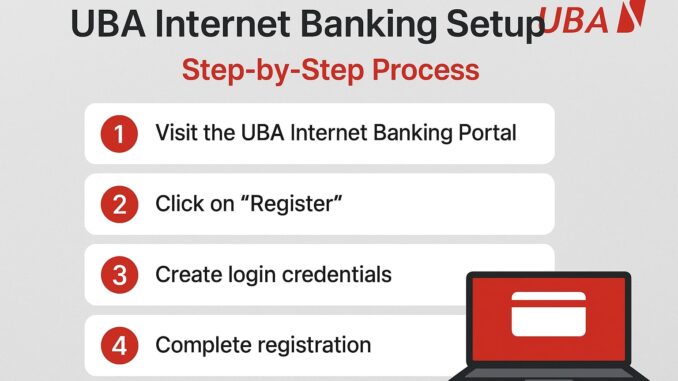
UBA Internet Banking allows customers to manage their accounts online without visiting a bank branch. With this service, you can check your balance, transfer money, pay bills, get statements, and perform many other banking transactions securely from your phone or computer.
This guide explains how to set up UBA Internet Banking, the requirements, activation steps, and how to resolve common issues.
What Is UBA Internet Banking?
UBA Internet Banking is an online platform that enables UBA customers to access their bank accounts through a web browser. It is different from USSD banking because it requires an internet connection and supports more advanced features.
You can use UBA Internet Banking on:
- Smartphones
- Tablets
- Laptops
- Desktop computers
Requirements for UBA Internet Banking Setup
Before setting up UBA Internet Banking, make sure you have the following:
- An active UBA account
- Your UBA account number
- A valid ATM card
- A registered phone number
- A working email address
- Internet access
- Your UBA Secure Pass or token (for full transactions)
How to Set Up UBA Internet Banking (Step-by-Step)
Step 1: Visit the UBA Internet Banking Portal
Open your browser and go to the official UBA Internet Banking website.
Step 2: Click on “Register”
On the homepage, select Internet Banking and click Register to begin the setup process.
Step 3: Choose User Type
Select the appropriate option:
- Individual User
- Corporate User
Most customers should choose Individual User.
Step 4: Enter Your Account Details
Provide the following:
- UBA account number
- ATM card details (card number & expiry date)
- Registered phone number
Step 5: Create Login Credentials
You will be asked to:
- Create a Username
- Create a Password
- Set up security questions
Ensure your password is strong and private.
Step 6: Verify with OTP
UBA will send an OTP (One-Time Password) to your registered phone number or email. Enter the OTP to verify your registration.
Step 7: Complete Registration
Once verified, your UBA Internet Banking profile will be activated successfully.
You can now log in anytime using your username and password.
How to Log In to UBA Internet Banking
- Visit the UBA Internet Banking portal
- Enter your username and password
- Click Login
For sensitive transactions, UBA may request an OTP or Secure Pass authentication.
How to Perform Transactions on UBA Internet Banking
After setup, you can:
- Check account balance
- Transfer money (UBA to UBA & other banks)
- Pay bills and utilities
- Buy airtime and data
- View and get your account statements
- Manage beneficiaries
UBA Secure Pass – What You Need to Know
UBA Secure Pass is a security feature used to approve transactions.
There are two types:
- Secure Pass App
- Physical Token
For transfers and payments, Secure Pass is mandatory.
How to Get UBA Secure Pass
You can:
- Get the UBA Secure Pass App from Google Play or App Store
- Or request a physical token at a UBA branch
How to Reset UBA Internet Banking Password
If you forget your password:
- Go to the login page
- Click Forgot Password
- Enter your username
- Verify with OTP
- Create a new password
Common Problems and Solutions
1. Login Failed
Ensure correct username and password
Turn off CAPS LOCK
Reset password if needed
2. OTP Not Received
Check network signal
Wait a few minutes and retry
Confirm your phone number is correctly registered
3. Transaction Declined
Ensure you have Secure Pass
Check daily transaction limits
Confirm sufficient account balance
UBA Internet Banking Charges
| Service | Charge |
|---|---|
| Registration | Free |
| Balance check | Free |
| Transfers | CBN-approved fees |
| Bill payments | May vary |
Is UBA Internet Banking Safe?
Yes. UBA Internet Banking is secure because it uses:
- OTP verification
- Secure login credentials
- Secure Pass authentication
- Encrypted sessions
Always keep your login details private.
Difference Between UBA Internet Banking and USSD Banking
| Feature | Internet Banking | USSD |
|---|---|---|
| Internet Required | Yes | No |
| Smartphone Needed | No | No |
| Advanced Features | Yes | No |
| Speed | Fast | Very Fast |
Final Thoughts
UBA Internet Banking is a powerful and convenient way to manage your finances online. Once set up, you can handle almost all banking activities without visiting a branch, saving time and effort.
If you want full control over your account with detailed transaction management, UBA Internet Banking is a smart choice.
Leave a Reply